LightBlog

jeudi 30 décembre 2021

Telegram 8.4 adds message reactions, spoiler formatting, message translations, and more

Telegram is one of the best messaging services around, and it adds new features and options at an incredible rate. The service added new media improvements and iOS updates last month, and more recently restricted message forwarding and made it easier to delete older chats. Now another update is rolling out with even more features. Telegram latest update, version 8.4, adds message reactions, spoiler tags, message translations, and more.

Message reactions are ubiquitous across platforms, with WhatsApp even being spotted working on introducing them in the future. Other platforms such as Facebook Messenger, Discord, and even Slack supported them, but their omission from Telegram seemed odd. Now they’re here, and you can even set a quick reaction that can be triggered just by double-tapping a message.

Telegram message reactions

Another big update outlined in the company’s blog post is the introduction of spoiler formatting, which we knew was being tested recently. It’s great for discussing movies and other content that you don’t want people to automatically see. Just watched Spider-Man: No Way Home and want to talk about it in a group chat without spoiling it for the one friend who hasn’t seen it? Just use spoiler tags, and your message will only be viewable by tapping it.

Finally, you can also translate messages into any language directly from within Telegram. You can enable the Translate button in Telegram’s language settings, and then just hold down on any message to translate it. You can also exclude the translate button from messages written in a language you’re fluent in. It works on all Android devices that support Telegram but requires iOS 15+ on iPhones.

Telegram translate message

Other smaller updates include themed QR codes for your username, new menus for MacOS, and more interactive emoji. The interactive emoji are fun, as you can tap a large emoji sent on its own to play a fun animation.

Telegram 8.4 is rolling out on the Google Play Store and Apple App Store.

Telegram (Free, Google Play) →

The post Telegram 8.4 adds message reactions, spoiler formatting, message translations, and more appeared first on xda-developers.


from xda-developers https://ift.tt/3EH0tP9
via IFTTT

OnePlus 9 and 9 Pro get new OxygenOS 12 stable updates with bug fixes and improvements

Less than two weeks after resuming the OxygenOS 12 rollout for the OnePlus 9 and the OnePlus 9 Pro, OnePlus has started seeding yet another Android 12-based stable channel update for the device duo. The latest OxygenOS build for the OnePlus 9 family adds to the previous update with a few more optimizations and bug fixes.

OnePlus 9 Pro OxygenOS 12 C.40 OTA

Screenshot credit: OnePlus Community member Jite92

The version number of the new build is C.40, and it addresses the anomaly where the device is unable to access the 5G network after upgrading to Android 12. The release also takes care of the system upgrade failure events that some users faced while installing the previous stable build of Android 12. According to the official announcement post, only the global and the Indian variants of the OnePlus 9/9 Pro are eligible for this update. We still don’t know when the European edition will get the fixed build of OxygenOS 12.

As with all OxygenOS updates, OnePlus is rolling out the latest OxygenOS 12 build for the OnePlus 9 and the OnePlus 9 Pro in a staged fashion. This means that the new build will initially be delivered to a limited number of users, with a broader rollout to follow in the next few days. Once the company confirms that there aren’t any major issues with the update, it will be pushed to more users.

OnePlus 9 XDA Forums || OnePlus 9 Pro XDA Forums


Download OxygenOS 12 C.40 update for the OnePlus 9 and 9 Pro

In case you don’t wish to wait in the queue for the update, you can download the appropriate incremental OTA package from the index below and install the new build manually.

OnePlus 9

OnePlus 9 Pro


Thanks to XDA Senior Member Some_Random_Username for the download links!

The post OnePlus 9 and 9 Pro get new OxygenOS 12 stable updates with bug fixes and improvements appeared first on xda-developers.


from xda-developers https://ift.tt/3sSkVKi
via IFTTT

mercredi 29 décembre 2021

XDA Basics: How to set up Windows Hello on your PC

Windows Hello is one of the coolest features introduced in Windows 10, and it allows you to unlock your PC using your fingerprint or your face. You can even use a USB security key this way. While biometric security wasn’t completely new to laptops when Windows Hello rolled around, it became much more common after that, and it also became standardized for any laptop that included it. But how do you set up Windows Hello? We’re here to help with that.

What you’ll need

The first thing you’ll need if you want to use Windows Hello is hardware that’s compatible. Most of the best laptops these days include either a fingerprint reader or an infrared camera for facial recognition. If you have a desktop PC or your laptop doesn’t have one of these things, though, you can buy an external device that handles Windows Hello for you. Check out the options below if you need a Windows Hello device, or see our list of the best webcams out there, a few of which support Windows Hello. If you’re looking to buy a PC, we have a list of Windows Hello laptops you might want to check out.

    Lenovo 500 Full HD Webcam

    Windows Hello camera

    A webcam with an IR sensor so you can unlock your PC easily.
    Kingston VeriMark Fingerprint Reader

    Fingerprint reader

    This USB-based fingerprint reader allows you to unlock your PC more easily.
    Yubico Yubikey 5

    Security key

    This USB and NFC-enabled security key can protect sensitive data on your PC and more.

Another thing you’ll need to set up Windows Hello is to be signed into your PC using a Microsoft account. Windows 10 and 11 already nudge you in that direction, though, so you should be good. You can always add a Microsoft account to your PC by going to the Settings app and choosing Accounts -> Your info. You’ll see the option to add a Microsoft account there. Once that’s done, we can get started.

Set up Windows Hello on your PC

If you just got a brand-new PC and you haven’t set it up yet, the easiest way to set it up is during the initial Windows setup process. After adding a Microsoft account, you can add a PIN, which is required for Windows Hello. Then, if your computer has Windows Hello hardware, you’ll be able to use your fingerprint or your face to set up Windows Hello.

If you’ve already set up your PC or you’ve just bought one of the devices above, here’s how to set up Windows Hello:

  1. Open the Settings app and go to the Accounts page.
  2. Click Sign-in options. All the Windows Hello settings are available at the top of this page.
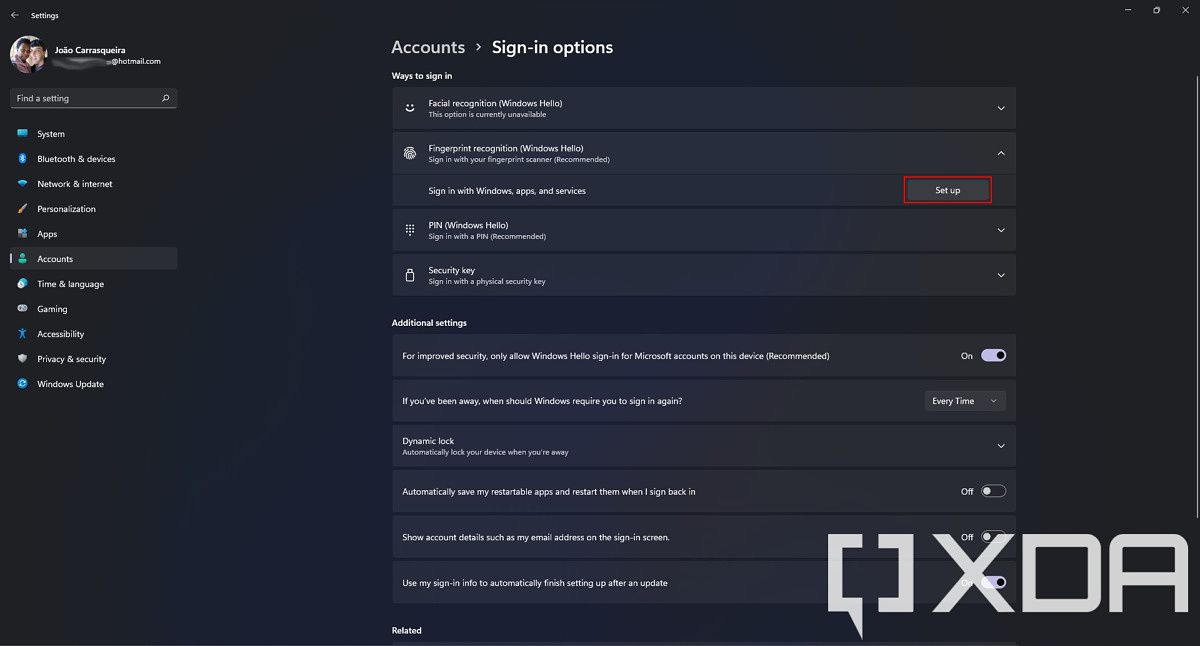
  3. Select the type of Windows Hello device you have, then click Set up to begin. If fingerprint recognition and facial recognition options aren’t available on your PC, you’ll see that indication, so this also lets you find out if your PC has any of these methods built-in.
    Windows Hello sign-in options
  4. If you haven’t set up a Windows Hello PIN, you’ll have to do that first. By default, a PIN only uses numbers, but you can use letters and symbols if you want to. You’ll probably want this to be different from your Microsoft account password, though.
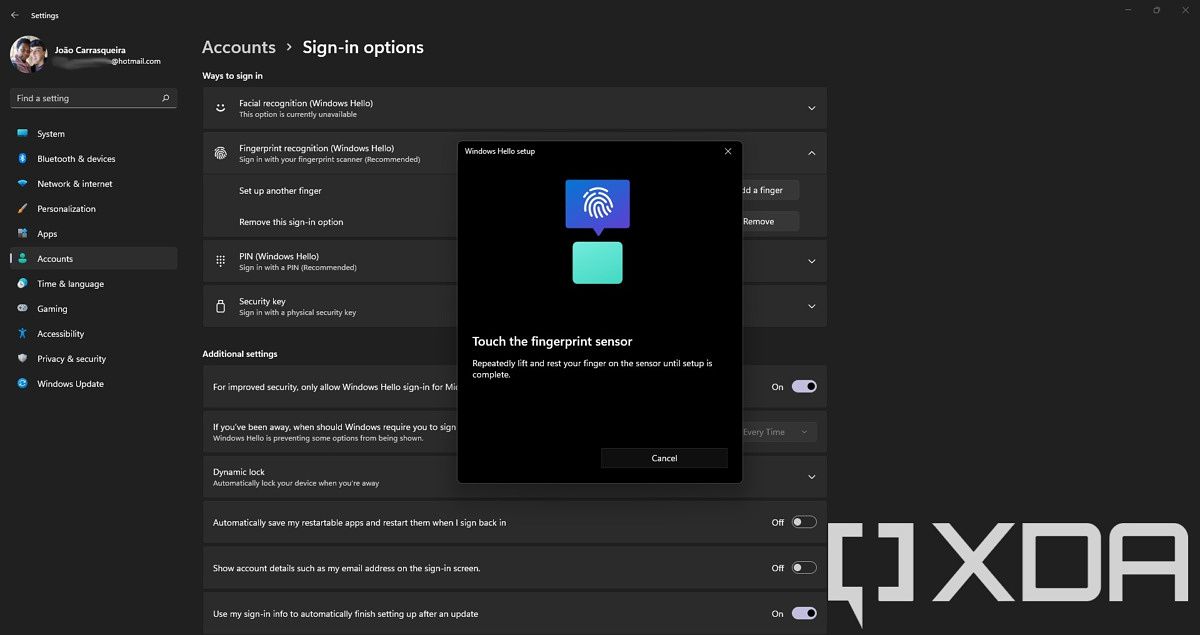
  5. Follow the instructions on screen to set up Windows Hello for your device. For facial recognition, you’ll need to line up your face and move it around. For fingerprint recognition, you’ll need to repeatedly tap your finger on the fingerprint sensor in different positions to register your fingerprint.
    • Can’t find your fingerprint reader? Many laptops have it built into the power button, while others might have it on the touchpad or below the keyboard.
      Adding a fingerprint in Windows Hello settings
  6. Once you’ve set up one face or finger, you can add more so you can use different fingers to unlock your PC or grant access to someone else.

And that’s it! You can now use your fingerprint or face to unlock your PC. You can press the Windows key + to go to your lock screen and test out Windows Hello. Tapping your finger on the fingerprint reader or simply standing in front of the camera should unlock your PC automatically from now on.

If you want to stop using Windows Hello, you can head back to the same page in Settings and remove Windows Hello as a sign-in option. You can keep using a PIN as a replacement for your Microsoft account password, which may be simpler and more secure.

The post XDA Basics: How to set up Windows Hello on your PC appeared first on xda-developers.


from xda-developers https://ift.tt/3JrVIfJ
via IFTTT

[Update: Rolling out in India] Realme rolls out stable Realme UI 3.0 to the Realme GT in China

Update (12/29/2021 @ 09:30 ET): The stable Realme UI 3.0 update for the Realme GT is now rolling out in India. Scroll to the bottom for more information. The article as published on December 23, 2021, is preserved below.

After weeks of testing Realme UI 3.0 in the beta channel, Realme has started rolling out the first stable release based on Android 12 to the Realme GT. The update brings all the new features Google introduced in Android 12, along with a couple of unique additions from Realme. At the moment, the stable Realme UI 3.0 update is limited to the Chinese variant of the Realme GT, but we expect the company to release the update for the global variant in the coming days.

As per a recent post on the Realme community forums, the stable update (software version RMX2202_11_C.10) has started rolling out to the Realme GT in China. The update is rolling out in a staged fashion and should reach all devices in the region within the next 15 days. Check the section below for the complete changelog.

Realme UI 3.0 (RMX2202_11_C.10) Changelog (machine translated)

  • Brand new design
    •  Newly added smart assistant card, providing smart and efficient application cards, key information is clear at a glance, and key functions can be reached with one touch
    • Newly restructured the page layout, noise reduction and white space, and distinguished primary and secondary information by color, the core information is more focused
    • Added three-dimensional icon design, introduced new materials, unified light and shadow and levels, and experienced the joy of color
    • Optimize the quantum animation engine 3.0, focus on “quality”, simulate real physical motion, optimize animation details 300+, and bring a more natural interactive experience
    • Optimized richer screen styles, support Zhenqi Meow and Portrait Shadow AOD, making self-expression more unique and unique
  • Convenient and efficient
    • Added note graffiti tool, personalized record of life
    • Optimized the smart sidebar
      • Support intelligent recommendation related functions in video, shopping and other scenarios
      • Added shorthand for small window, click to enter the floating window of notes, and complete the record quickly
      • Added smart subtitles, supports recognition of conference and call voices, real-time generation of subtitles, and supports translation between Chinese and English
      • Added recognition of background music, quickly recognize the background music in short videos, and find music without asking for help
      • Added article reading aloud, support one-click reading of WeChat official accounts, today’s headlines and other information content
      • Added product price comparison, when using shopping software, one-click display of the same good products at low prices
    • Optimized Shinda window upgrade to free floating window
  • Security and Privacy
    • Added support for erasing location information and shooting data for sharing photos or videos
    • Optimized that after the mobile phone is lost, it can be locked through the cloud so that it cannot be shut down or used, reducing the risk of data loss
    • Optimize the mobile phone manager to integrate more security and privacy functions such as privacy doubles, codebooks, emergency calls, etc.
    • Optimize the status bar icon reminder to be more eye-catching when the application calls sensitive permissions such as camera, recording, positioning, etc.
    • Optimize the medical emergency card, support automatic transmission of the preset medical emergency card information to the emergency center when dialing 120
    • Optimize earthquake early warning, add function preview page, add earthquake banner notification reminder with estimated intensity 2.0 and below, and provide early warning of earthquake information at all times
    • Optimize harassment interception, add MMS interception capabilities to reduce the interruption of spam
  • Performance optimization
    • Added intelligent prediction of frequently used applications and loaded them in advance, making applications open faster
    • Added graphs to display power consumption records to quickly understand battery consumption details
    • Optimized for faster response when switching WLAN, Bluetooth, airplane mode, and NFC
    • Optimize the loading speed of high-frequency scenes of third-party applications to increase the speed of scanning Weibo and watching videos more enjoyable
  • Game
    • Added that when the game resource pack is updated, the game can be switched to the background for update (only some games are supported)
    • Added pop-up game skills and match replays during the game to help quickly master the gameplay (only some games are supported)
    • Optimize the frame rate performance of the game under high load scenarios such as team battles to be more stable
    • Optimize heterogeneous computing to reduce the average load of the processor and lower game power consumption
  • Camera
    • Added a new order of custom camera modes, which is convenient for quickly switching to commonly used camera modes
    • Optimized inertial zoom, rear video shooting mode, drag the slide bar to zoom at a constant speed
  • System
    • Optimize the automatic brightness adjustment algorithm, optimize the intelligent scene detection, and browse the screen more comfortably
  • Accessibility
    • Optimize accessibility mode
      • Added a visual introduction, and added an image introduction to the function page
      • Optimize function classification, display according to visual/auditory/interactive/general classification
      • TalkBack adapts to more system applications such as albums, calls, emails, calendars, etc.

At the moment, Realme has not shared any information regarding a global rollout. However, it shouldn’t be long before the update starts rolling out in more regions. We’ll make sure to let you know as soon as Realme starts rolling out a stable build of Realme UI 3.0 for the global variant of the Realme GT.


Update: Stable Realme UI 3.0 is now rolling out for the Realme GT in India

According to a recent post on the Realme community forums, the stable Realme UI 3.0 update for the Realme GT is now rolling out in India. The update (build number RMX2202_11.C.05) has the following changelog:

  • New design
    • The all-new design, which emphasizes a sense of space, deliver a simple, clean, and comfortable visual and interactive experience.
    • Revamps the page layout based on the principle of reducing visual noise and spacing out elements, and prioritizes information with different colors to make key information stand out.
    • Redesigns icons using new materials to give more depth and a greater sense of space and texture to the icons.
    • Optimizes Quantum Animation Engine: Quantum Animation Engine 3.0 implements the concept of mass to make animations more lifelike, and optimizes more than 300 animations to bring a more natural user experience.
    • More creative Always-On Display: Adds realmeow and Portrait silhouette to let you freely express yourself.
  • Convenience & efficiency
    • FlexDrop is renamed Flexible Windows and is optimized:
      • Optimizes the method of switching floating windows between different sizes.
      • You can now drag a file from My Files or a photo from the Photos app to a floating window.
  • Performance
    • Adds Quick launch, a feature that detects the apps you use frequently and pre-loads them so you can open them quickly.
    • Adds a chart to display your battery usage.
    • Improves the responsiveness of turning on or off WiFi, Bluetooth, Airplane mode, and NFC.
  • Games
    • In team fight scenes, games run more smoothly at a stable frame rate.
    • Reduces the CPU load average and lowers the battery usage.
  • Camera
    • You can now decide which camera modes are displayed on the menu bar and in what order they are displayed.
    • You can now drag the zoom slider to zoom in or out smoothly when shooting a video using the rear camera.
  • System
    • Optimizes the auto brightness algorithm to adapt screen brightness to more scenes for a comfortable screen reading experience.
  • Accessibility
    • Optimizes accessibility:
    • Adds visuals to text instructions for an intuitive understanding of accessibility functions.
    • Optimizes categorization of functions by grouping them into vision, hearing, interactive actions, and general.
    • TalkBack supports more system apps including Photos, Phone, Mail, and Calendar.

Realme says that the update is rolling out in a staged fashion and it should reach all users in the region in the next few days.

The post [Update: Rolling out in India] Realme rolls out stable Realme UI 3.0 to the Realme GT in China appeared first on xda-developers.


from xda-developers https://ift.tt/3H6Vvwt
via IFTTT

OPPO Reno 5 and Reno 6 starts receiving stable ColorOS 12 update with Android 12

Back in September, OPPO officially unveiled ColorOS 12, the latest version of the company’s custom Android skin. Since then the Chinese phone maker has rolled out ColorOS 12 beta to several OPPO phones, allowing users to try out an early version of Android 12 ahead of the stable release. including the Find X3 Pro, Find X2 Pro, Reno 6 series, Reno 5 series, and more. Earlier this month, OPPO revealed that it would release stable ColorOS 12 for some of its premium phones later this month. As promised, the company has now started rolling out the stable Android 12 update to the Reno 6 and Reno 5 models.

Hands-on with ColorOS 12 based on Android 12: Here’s everything new in the latest update for OPPO smartphones

According to a series of announcements on the OPPO Community, the stable ColorOS 12 update based on Android 12 has started rolling out to the Reno 5 5G, Reno 5 Pro 5G, Reno 6 5G, and Reno 6 Pro 5G.

ColorOS 12 stable availability:

  • OPPO Reno 5 5G — Indonesia
  • OPPO Reno 5 Pro 5G — Saudi Arabia, the UAE
  • OPPO Reno 6 5G —  Indonesia, India, Vietnam
  • OPPO Reno 6 Pro 5G — Indonesia, India, Saudia Arabia, Pakistan

As you can see, the update is currently only live in select regions. However, we expect the company to expand the rollout to more markets soon. In any case, Reno 5 and Reno 6 series owners residing in the above-mentioned markets can look forward to receiving the OTA notification in the coming days. If you want to skip the wait, you can also trigger it manually. To do so, head to Settings > Software Updates > click on the gear icon in the top right corner > tap “Trial Version” and then click on the “Apply now.” You should receive the new update shortly after.

After installing the ColorOS 12 update, Reno 5 and Reno 6 owners can look forward to many exciting features, including a new wallpaper-based theming system, Canvas AOD, Screen Translate, Background Stream, Android 12’s Privacy Dashboard and privacy indicators, and much more. To learn more about ColorOS 12, check out our in-depth review of the new skin.

The post OPPO Reno 5 and Reno 6 starts receiving stable ColorOS 12 update with Android 12 appeared first on xda-developers.


from xda-developers https://ift.tt/3HjGkQS
via IFTTT

mardi 28 décembre 2021

These are the Best Samsung Galaxy Z Flip 3 Cases in 2022

Samsung launched the Galaxy Z Fold 3, their best foldable phone yet, right alongside the Galaxy Z Flip 3 which is a compact, clamshell smartphone with high-end internals. If you’ve decided to get the more affordable Galaxy Z Flip 3, which by the way still isn’t cheap at almost a thousand bucks, the last thing you want to end up with is a scratched-up phone or even worse, a cracked display and back. The Galaxy Z Flip 3, like most modern-day smartphones, is made up of glass and no matter how resilient Gorilla Glass Victus is, it’s quite easy to shatter if you drop your phone on a hard surface. Samsung is portraying the Galaxy Z Flip 3 as a device that adds to your style statement and you can amplify that notion by customizing the phone with a good case.

While you can get a Samsung Care+ plan with the phone to cover accidental damage, it’s always better to prevent any damage from happening in the first place. The best way to protect your Galaxy Z Flip 3 would be to put on a case. Some cases not only provide protection but also improve the usability or the grip of your phone. Here are some of the best Galaxy Z Flip 3 cases that you can buy right now across various price segments.

    Galaxy Z Flip 3 Ring Case

    Ring on the back

    This ring case from Samsung will help you grip the Z Flip 3 better by letting you insert your finger into the ring while using the phone.
    Supcase Unicorn Beetle Pro

    Best grip and protection

    The Supcase Unicorn Beetle Pro offers top-class protection for the Galaxy Z Flip 3 while also making it easier to grip. If you drop your phone frequently, this case can be a saviour! It even comes with a belt holster.

    Promoted

    Samsung Belt Case

    Belt for grip

    This case has a belt on the back which you can slide your hands into while using the phone. It even gives the phone a cool look.
    Samsung Carbon Fiber Case

    Thin and classy

    If you're a fan of carbon fiber, you're really going to like this case. It's thin and doesn't add a lot of bulk to the device. Provides a stealthy look.
    i-Blason Cosmo Series Case

    Stylish and protective

    This case from i-Blason has a colorful design and stands out from the generic-looking cases. It also provides a good deal of protection.

    Promoted

    Sunstory Z Flip 3 Case

    Leather feel

    This case is made up of hard polycarbonate but has a soft leather feel on the outside. It's cheap and looks decent.
    Spigen Tough Armor

    Best protection

    This case from Spigen is for those who want the best protection against drops even on hard surfaces. it even looks good.
    Spigen Thin Fit

    Minimal protection

    Spigen is known to make good cases and this one for the Galaxy Z Flip 3 fits snug and provides minimal protection against scratches and drops.
    Ringke slim case

    Clear and protective

    This case from Ringke has a translucent back giving your phone a frosted look. It also provides a good deal of protection while being slim.
    Spigen Air Skin

    Another clear case

    If you want a crystal clear case from a reputed brand, this one from Spigen should be your option. It's slim and doesn't add a lot of bulk.
    VRS Design Quickstand Active

    Built-in kickstand

    The Z Flip 3 can technically be used as a kickstand in the Flex Mode but if you want more flexibility, this case has a kickstand built-in!
    Vizvera Hard Case

    Multiple color options

    The Galaxy Z Flip 3 comes in a variety of colors but if you want to switch it up, you can get a few of these cases in different colors.
    VRS Terra Guard

    Extreme protection

    This is one of the most rugged cases that you can find for the Galaxy Z Flip 3. It has a thick shell to protect the hinge too. If you drop your phone often, this one is for you.
    UAG Civilian

    Shockproof case

    If you want a slightly toned down version of a rugged case, the UAG Civilian is a good option. It does add some bulk but is surely not as thick as the VRS case we mentioned prior to this.
    Araree Canvas Diary

    Unique and convenient

    This is a fabric-style case that comes in different colors and has a lanyard attached on both sides of the hinge which lets you carry it on your shoulder like a bag.

Since the Galaxy Z Flip 3 has been launched recently and is a new device, there aren’t a lot of third-party cases you can buy at the moment. We’ve mentioned the best cases as of now which are mostly first-party cases directly from Samsung but there should be more options from case makers soon. The carbon fiber case is a thin case so if you’re looking for minimal protection with good looks, that’s the one you should opt for. If you’re looking for a case that will help you grip or hold the phone better when using it, the ring case and the belt case will serve the purpose well. If you want maximum protection, the Spigen Tough Armor is the case to pick.

    Samsung Galaxy Z Flip 3
    The Galaxy Z Flip 3 is Samsung's latest clamshell foldable that offers a bigger outer display, high refresh rate inner display, and top-of-the-line hardware.

If you’re looking to get your hands on the latest foldable from Samsung, you might want to check out the best Galaxy Z Flip 3 deals that can help you save a few extra bucks. If you’ve got the elder sibling, the Galaxy Z Fold 3, we’ve got a list of the best cases for that phone as well.

The post These are the Best Samsung Galaxy Z Flip 3 Cases in 2022 appeared first on xda-developers.


from xda-developers https://ift.tt/3yQvihS
via IFTTT

These are the Best Wear OS Apps for your Smartwatch in 2022

The Apple Watch is often regarded as one of the best smartwatches in the industry. While that’s mainly because the Apple Watch is indeed a fantastic product, it’s also partly because there’s no stiff competition on the Android side of things. Wear OS has been ignored for a long time by Google, and it was only recently they announced during Google I/O 2021 that Wear OS would receive yet another attempt of revival with the help of a partnership with Samsung. While this is certainly exciting, we’re yet to see watches with the new version of Wear OS, and existing watches (even Google is unsure of the compatibility) still haven’t received the update either.
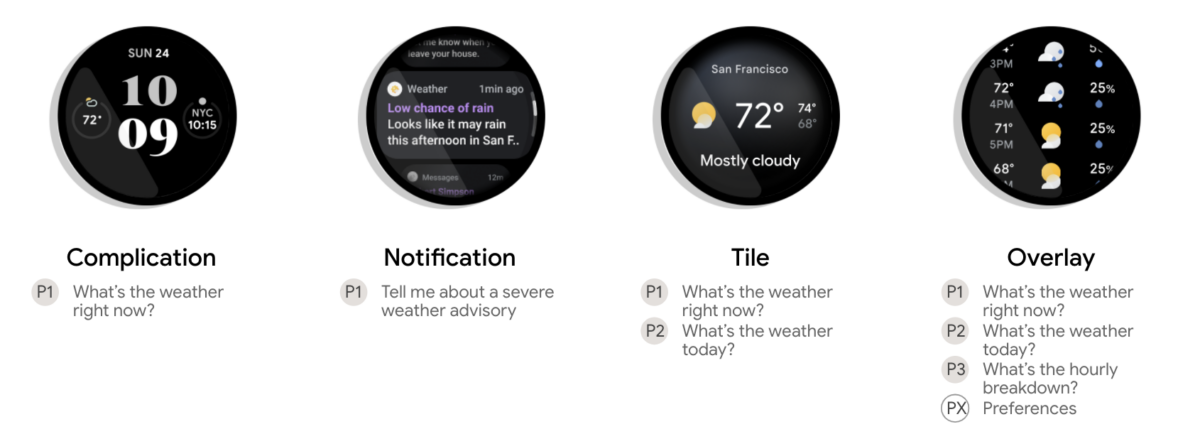
WearOS Overview

While we wait for the biggest Wear OS update in years, we decided to compile a list of some of the best Wear OS apps you must try if you have a Wear OS watch already. If you’re waiting to pick up a watch from the new batch of Wear OS smartwatches (which is a smart thing to do at this point), then bookmark this page as these are all the apps you’d need to install to get you started on Wear OS.

From productivity to utilities to entertainment, we’ve covered all the popular genres of Wear OS apps. If you’re also looking for the best apps for your smartphone along with your smartwatch, we also have a list of the best Android apps.

Navigate this article:

Essential Apps

These are the apps that form the core experience on Wear OS and the ones you must have on your smartwatch. While these Wear OS apps may not be new or unique or provide some insane functionality, they do have simple functions that make your life easier on a regular basis and improve convenience.

Messages

WearOS Messages app

One of the most important use-cases for a smartwatch, let alone one with Wear OS, is the ability to check your notifications. It eliminates the need to check your smartphone regularly while you’re working, and is a good way to avoid distractions if the notification you received isn’t important.

While you can reply to notifications by default on Wear OS, you can’t initiate chats or conversations unless you have the Messages app. Using the Messages for Wear OS app, you can send text messages to your friends and family right from your smartwatch and continue existing conversation threads from your smartphone directly on your watch. When you’re in a hurry or you’re driving, this is a convenient way to use voice input to draft a quick message.

Messages (Free, Google Play) →

Calculator

Calculator app on WearOS

The Calculator is an app you don’t realize the importance of until you’re in a situation where you need to use it. But then you realize you have to pull out your phone to perform some simple calculations. When you’re at a store trying to do a quick calculation or you’re trying to convince your friends that 87 is indeed divisible by 29, this is an app you should have on your Wear OS smartwatch at all times.

Calculator For Wear OS (Android Wear) (Free, Google Play) →

Camera Remote

Camera Remote for WearOS

If you’re in a situation where you need to click a group picture but you don’t have anyone to do it for you, this app is going to come in handy. Not just that, if you want to record selfie videos using the rear-facing camera of your smartphone but you can’t see the viewfinder since the screen is facing the opposite side, this app will help you set your frame properly.

We wonder why a camera remote isn’t a part of Wear OS by default since even some cheap fitness trackers come with one by default, but this Camera Remote app solves the problem. Note you will also need to install a companion app on your smartphone which you’ll be asked to do once you install the Wear OS app. Also, the free version has a persistent message on the app but doesn’t add any sort of watermark to your images. If you want to get rid of the message, you’ll have to buy the full version.

Camera Remote: Wear OS, Galaxy Watch, Gear S3 App (Free+, Google Play) →


Productivity Apps

Needless to say, these apps are meant to improve your productivity throughout the day by adding some value in terms of making your work easier or more convenient. These apps may also help you stay away from your smartphone for longer or prevent you from unnecessarily checking your smartphone at regular intervals since the information you need is available right on your wrist.

Google Keep

Google Keep WearOS

Google Keep is Google’s own note-taking app that you may be aware of and may even use on a regular basis on your smartphone and computer. We personally prefer Google Keep since it’s linked to your Google account and therefore syncs across all your devices with ease. It comes pre-installed on most Android smartphones so you don’t even have to install and sign up for a third-party app.

Google Keep is also available as a Wear OS app which means you can now take notes directly on your watch or refer to notes you previously took without reaching for your smartphone. This is really handy, especially when you’re in a meeting.

Google Keep - Notes and Lists (Free, Google Play) →

Todoist

Todoist WearOS app

While Google Keep helps you with taking notes on your wrist, Todoist helps you set reminders, make to-do lists, and set up tasks you need to complete. You can set your agenda for the day and as you go about your day, you can keep checking off all your completed tasks.

It’s a great way to keep track of your pending work or just a convenient way to make a shopping list before you head out. This is a great use-case since it’s annoying to keep checking your smartphone while picking up items when shopping, so taking a glance at your wrist is an easier option.

Todoist: To-Do List & Tasks (Free+, Google Play) →

Microsoft Outlook

Microsoft Outlook

Outlook is one of the most popular email clients for both PC and smartphones, and Microsoft has made the app available for Wear OS as well. This is one of the only email clients available as a Wear OS app and is also one of the best ones out there coming from a reputed developer. While your email notifications are displayed on Wear OS and you can interact with them, you don’t get full-fledged features you would expect while responding to an email or the ability to check your inbox. Outlook makes it possible and so can improve your productivity by allowing you to check your emails directly from your wrist.

Microsoft Outlook (Free, Google Play) →


Utility Apps

This set of apps can provide basic or extended functionality that improves the usability of your Wear OS smartwatch. If you were using your smartwatch just as a fitness tracker or a notification manager before, these apps will help you use your Wear OS watch to its full potential and make your watch an actual smartwatch.

Telegram

Telegram app on WearOS

Telegram is undoubtedly one of the best Instant Messaging apps out there both in terms of privacy as well as the features it has to offer. After the entire WhatsApp saga that happened recently, some users have even shifted to Telegram permanently which is great if you have a smartwatch running Wear OS.

Telegram has a Wear OS app and is one of the only messaging services to have one. You can start a new conversation from your watch or continue an existing one, something you can’t do on WhatsApp since they don’t have a dedicated app for Wear OS.

Telegram (Free, Google Play) →

Google Translate

Google Translate

If you’re traveling in a foreign country and don’t know the local language, you no longer have to take your smartphone out of your pocket or backpack. Instead, you can just use Google Translate on your Wear OS smartwatch. You get the full set of languages that you usually get on Google Translate, either on the mobile app or the website. You can even use text to speech for translation which is very useful if you want to translate what someone else is saying in their local language.

Google Translate (Free, Google Play) →

IFTTT

IFTTT applet

If you’re a power user, you’re probably already aware of the IFTTT app on Android. IFTTT stands for ‘If This Then That’ and as the name suggests, you can set particular functions that can be triggered if a certain scenario takes place.

For example, you can set a simple function that if your phone detects you’re at work using your location services, then it automatically sets the phone to silent mode. While this is a simple example, there are lots of other things you can do with IFTTT to automate a lot of functionality.

With the Wear OS app, you can control your IFTTT applets and enable or disable them. If you haven’t used it before, we suggest you first download the app on your smartphone and try it out.

IFTTT - automation & workflow (Free+, Google Play) →

Google Maps

Google Maps on WearOS

This app doesn’t need any explanation. Google Maps on your wrist is a great way to navigate if you’re driving or even riding a bike. You can take a glance at your wrist for directions instead of having to mount your phone and it makes things a lot more convenient. It’s also easier to look at your wrist while you’re checking walking directions instead of carrying your smartphone in your hand.

Google Maps (Free, Google Play) →

Easy Voice Recorder

Easy Voice Recorder

This is another of those apps that makes you wonder why Google didn’t include it by default on Wear OS. Easy Voice Recorder is a very handy tool that we’ve personally used multiple times when you want to take a quick note of something, but you don’t have the time to type it in on your smartwatch or your smartphone. You can instead just record it on your watch and then reference it later on. It can also be useful if you want to record a conversation or a meeting to take notes later on. This is a must-have Wear OS app for sure.

Easy Voice Recorder (Free+, Google Play) →


Customization Apps

Who doesn’t like some customization on their watch, right? Android is an operating system that’s meant for people who love customization and while Wear OS isn’t as customizable as its smartphone counterpart, you can still mess around with a few things, especially the watch faces.

Whether you want a futuristic matrix look or a funky dial matching your outfit for the day, here’s how you can customize your Wear OS smartwatch.

Watchmaker

Watchmaker watch faces

Watchmaker is one of the most popular Wear OS apps when it comes to customization. It offers a range of watch faces to choose from depending on what kind of designs and elements you like. Whether you’re a fan of the digital dial on a Casio or a classic analog dial from a mechanical watch, Watchmaker has it all. You can even customize watch faces made by others or completely make one from scratch if you don’t like the existing ones on the app.

The free version has limited options so we would suggest getting the Premium version if you’re going to be changing your watch faces frequently.

Watch Faces - WatchMaker 100,000 Faces (Free+, Google Play) →

Facer

Facer watch faces

The name itself has the word face in it implying this is also a watch face app meant for customization. If you don’t like the collection Watchmaker has to offer, you can try out Facer to see if you like the watch faces on their app. You can customize watch faces according to your liking and there’s a huge collection to choose from. You can have both Watchmaker and Facer installed on your smartwatch and alternate between them based on which app has your favorite watch faces.

Facer Watch Faces (Free+, Google Play) →


Fitness Apps

One of the core functionalities of any smartwatch is the ability to help you with fitness and workout tracking. While most smartwatches come with default applications included by the OEM for health and fitness tracking, we would recommend some apps that can help you track your workouts with precision as well as help you sync your fitness data across all your devices.

Google Fit

Google Fit for WearOS

Google Fit is a great way to track your health and fitness data since the service is linked to your Google account and the data syncs automatically with all your devices connected to the same Google account. You get a good set of features and workout modes to choose from, and if you have more than one fitness tracker or smartwatch, you can see the cumulative data of all devices in one place which can be very handy.

With Google’s acquisition of Fitbit, their fitness tracking algorithms are 0nly going to get better in the upcoming version of Wear OS so watch out for that.

Google Fit: Activity Tracking (Free, Google Play) →

Strava

Strava

Strava is probably one of the most popular apps among fitness enthusiasts. If you see your friends posting screenshots of their morning walk or run on Instagram, it’s probably a screenshot from Strava. You can use the app to track your walks, runs, swims, and even bicycle rides.

What makes Strava all the more fun is the community. While tracking your sessions, you can also compete against your friends and other Strava users which can motivate you to do better.

Strava: Track Running, Cycling & Swimming (Free+, Google Play) →


Media Apps

Another great use of a Wear OS smartwatch is the ability to control the media playback on your smartphone, or even stream music directly on your Wear OS smartwatch itself. If your smartwatch has eSIM functionality, you can even leave your smartphone behind at home while you head out for workouts with a pair of Bluetooth earphones connected directly to your smartwatch and stream music from your favorite services. Here are the best media apps for Wear OS.

Spotify

Spotify for WearOS

Spotify is one of the most popular music streaming services across the world and they have a native Wear OS app. As mentioned earlier, you can either use your phone’s internet connection to stream music directly from your smartwatch or if you have a cellular plan on your smartwatch itself, you don’t even need to have your smartphone with you.

You can sync all your existing playlists on the watch or create a new one for your workouts. The app works well and is a great way to enjoy your music without reaching out to your smartphone while working out.

Spotify: Music and Podcasts (Free, Google Play) →

Shazam

Shazam

Do you ever find yourself in a situation where you hear some music playing while you’re outside, and you really like how it sounds, but you don’t which song it is? Shazam has got you covered.

The Wear OS app for Shazam means you can easily identify any music that’s playing around you even quicker now since you don’t have to reach for your smartphone, unlock it and launch the Shazam app to identify the track. You can just use the app on your wrist and then download the song onto your smartphone. Another must-have Wear OS app for sure.

Shazam: Music Discovery (Free, Google Play) →


Games for Wear OS

If you thought you can’t do much on the tiny display of your Wear OS smartwatch, developers think otherwise. You can even play some lightweight, but fun games on your smartwatch, and here are two of our all-time favorite games on the platform. Note these games consume a lot of battery since the screen stays on throughout and Wear OS watches are known for their already notorious battery life. So play in moderation unless you want your watch to die in two hours.

Infinity Loop

Infinity Loop Game

Infinity Loop is a simple puzzle game for Wear OS which, as the name would suggest, is endless. You have to make links and connections between the dots and make closed loops out of them. This is a nice game to relax and calm your mind if you’ve had a stressful day. There are three game modes to choose from and the levels keep getting tougher as you keep playing.

Infinity Loop: Calm & Relaxing (Free+, Google Play) →

2048

2048 Puzzle Game

This is the classic 2048 puzzle game that all of you have probably played on your smartphone, and is now also available as a Wear OS app. If you’re not aware of how the 2048 game works, there’s a grid with numbers in individual squares that are multiples of two. You need to club two squares of the same number that then get added to form a square consisting of the sum of the two numbers. The end goal is to keep adding the squares till you attain the sum of two squares to be 2048.

If this sounds confusing, don’t worry. Just install the game and play around for a minute. We’re sure you’ll figure it out.

2048 Android Wear (Free, Google Play) →


These are some of the best Wear OS apps across different categories that can improve your smartwatch experience. They can help you to be more productive by allowing you to avoid checking your smartphone frequently or even add more utilities to your smartwatch by letting you take notes, set reminders, to-do lists, or even record audio. When you’re in a boring meeting, you can even fire up some games to kill time.

Which of these Wear OS apps do you use on a regular basis? Do you think we missed out on any app that you use and think it’s really useful on your smartwatch? Let us know in the comments below.

The post These are the Best Wear OS Apps for your Smartwatch in 2022 appeared first on xda-developers.


from xda-developers https://ift.tt/3w8Wgz7
via IFTTT