LightBlog

vendredi 30 septembre 2022

Keyboard Shortcuts on ChromeOS in 2022: Everything you need to know

Switching from a Mac or PC to one of the top Chromebooks can be a bit scary. After all, you’re moving to a cloud-based computing platform and probably implementing a new workflow. Keyboard shortcuts are also a little different on ChromeOS. If you use an external keyboard designed for Windows or macOS, you’ll also need to learn how specific keys behave in ChromeOS.

The good news is, we have you covered with this comprehensive guide to ChromeOS keyboard shortcuts. Whether you use your device for school or work, this guide will help you improve your efficiency using your Chromebook for daily tasks. We’ll start with a quick look at the most popular shortcuts, then move on to some specific categories of interest.

Popular Chrome keyboard shortcuts

In this section, we take a look at the most popular keyboard shortcuts on ChromeOS. Everyone needs to take the occasional screenshot or turn on Caps Lock for some good old-fashioned digital yelling. It’s important to note that depending on your keyboard, you can press the Search key  or the Launcher key  for some shortcuts. Both keys work the same.

Check out the list below for the shortcuts you will likely use the most when navigating ChromeOS.

  • Take a screenshot: Press Ctrl + Show Windows 
  • Take a partial screenshot: Press Shift + Ctrl + Show windows , then click and drag.
  • Take a screenshot on tablets: Press Power button + Volume down button.
  • To access more screenshot features: Press Shift + Ctrl + Show windows , then select a screenshot feature from the toolbar.
  • To access more screenshot features on tablets: Press and hold the Power button and then select “Screen capture,” or, select time and then select Screen capture.
  • Turn Caps Lock on or off: Press Search + Alt. Or press Launcher  + Alt.
  • Lock your screen: Press Search + L. Or press Launcher  + L.
  • Sign out of your Google Account: Press Shift + Ctrl + q (twice).
  • See all keyboard shortcuts: Press Ctrl + Alt + / (forward slash).

Using external keyboards and remapping keys

Many users migrating to a new Chromebook come from a computer running Windows or macOS. Perhaps you still enjoy using your trusty mechanical keyboard with a Windows or Mac layout? If you’re using a Windows or Mac keyboard, press the Windows key or Command key instead of the Search key or Launcher key .

To change how a specific keyboard key works:

    1. At the bottom right, select the time. Or press Alt + Shift + s.
    2. Select Settings .
    3. Under Device, choose Keyboard.
    4. Change the function of one or more keys.

Note that you’ll only be able to change the function of critical keys like Ctrl, Alt, Escape, Backspace, Caps Lock, and the External Meta key (search key.)

Chrome keyboard shortcuts for text editing

For those of you using a Chromebook for work or school, you probably edit a fair amount of text. Luckily, a few of the text editing shortcuts you know from Windows or macOS carry over nicely to ChromeOS. Whether you use Google Docs, Microsoft Office, or another option, these general keyboard shortcuts will come in handy. We’ve also included a specific set of shortcuts relevant to use in Google Drive/Google Docs.

General shortcuts for all apps

  • Turn Caps Lock on or off: Search + Alt (or) Launcher  + Alt
  • Select everything on the page: Ctrl + a
  • Select the next word or letter: Shift + Ctrl + Right arrow
  • Select previous word or letter: Shift + Ctrl + Left arrow
  • Open clipboard menu: Launcher  + v  or Search + v
  • Copy content to the clipboard: Ctrl+c
  • Cut content: Ctrl+x
  • Paste content from clipboard: Ctrl+v
  • Undo previous command: Ctrl+z 
  • Dim keyboard (for backlit keyboards only): Alt +
  • Make keyboard brighter (for backlit keyboards only): Alt +

Shortcuts specific to Google Drive/Docs


  • Document creation in Google Drive: Shift + T creates a new Doc, Shift + S creates a new Sheet, and Shift + F creates a new Folder.
  • Rename items in Google Drive: Tapping N pops up the window to rename the currently selected item. This is an incredibly useful tool to keep things organized on your Chromebook.
  • Clear formatting: Ctrl + \ will clear any weird formatting off of a section that copy-pasted in a strange way or with unintended formatting. On that note, you can use Ctrl+ Shift + V for pasting text without formatting.
  • Formatting lists: Ctrl + Shift + 7 will toggle on a numbered list or format highlighted text into a numbered list. Ctrl + Shift + 8 will do the same with a bulleted list.
  • Word count: Ctrl + Shift + C will bring up the word count screen, showing how many pages, words, and characters are in a highlighted section and the full document.
  • Voice typing: Ctrl + Shift + S will start voice typing, allowing you to add more text to your document without having to type it all out.
  • Go to top or bottom: Ctrl + Search + left arrow will go to the beginning of your document while Ctrl + Search + right arrow will go to the end.
  • Insert links: Ctrl + K will open the insert link window in Google Docs, allowing you to create a new hyperlink for new text or add a hyperlink to the text you had currently highlighted.

Chrome keyboard tab and window shortcuts

Navigating tabs and organizing windows is essential to any operating system. This is especially important on ChromeOS since most of your work will be completed in a browser. Many of these shortcuts are familiar as they’re similar to both Internet Explorer and Safari in many ways.

  • Open a new window: Ctrl+n
  • Open a new tab: Ctrl+t
  • Close the current tab: Ctrl+w
  • Close the current window: Shift+Ctrl+w
  • Reopen the last tab or window you closed: Shift+Ctrl+t
  • Go to the next tab in the window: Ctrl+tab
  • Go to the previous tab in the window: Shift+Ctrl+tab
  • Open the link in a new tab and switch to the new tab: Press Shift + Ctrl and click a link
  • Maximize window: Alt+=
  • Minimize window: Alt+-

Chrome keyboard browser page shortcuts

When working inside a browser page, you’ll also need to navigate the page itself. Moving up or down on a page is familiar, and searching a page is also the same command found on Windows. Google functionality is at the heart of your Chromebook, so of course, you can perform a quick Google search. Advanced users may also want to check a page source code.

Check out the list below for the full list of shortcuts to use on a browser page.

  • Page up: Alt + Up arrow
  • Page down: Alt + Down arrow
  • Reload your current page: Ctrl + r
  • Right-click a link: Press Alt and click a link
  • Print your current page: Ctrl + p
  • Search the current page: Ctrl + f
  • Perform a Google search: Ctrl + k or Ctrl + e
  • View page source: Ctrl+u
  • Open the History page: Ctrl+h
  • Open the Downloads page: Ctrl+j

Specific tips for Mac and Windows users

HP Chromebook

The tips below remedy some of the issues encountered by users migrating to ChromeOS from a Mac or Windows machine. You might want to get the missing Caps Lock key back or switch the Ctrl and Alt key functionality for reachability. These suggestions should ease the burden of moving to ChromeOS.

Caps Lock key replacement

You may have noticed that Chromebooks do not have a Caps Lock key. You can capitalize letters using the Shift key as usual, but you can also press Launcher+Alt to enable Caps Lock. You might also consider remapping the Launcher key to become a Caps Lock key. The process for remapping is outlined at the beginning of this article.

To do this, click the time in the bottom right-hand corner, and click the Settings icon. Scroll down to Keyboard, and remap the Search key, choosing Caps Lock from the list. Keep in mind that if you replace the Launcher key with Caps Lock, you will lose out on some of the shortcuts above that use the Launcher/Search key.

Change scrolling direction

You may prefer scrolling set so when you swipe down, you scroll down the page. This is very natural as it’s how smartphones and tablets behave with touch. It’s easy to change the scroll direction on your Chromebook. To do this, click the time in the bottom right hand corner, and click the Settings icon. Scroll down and select Touchpad. Under the scrolling option, select Enable reverse scrolling.

Enabling right-click

Right-click works a little differently on a Chromebook than on a PC (where you typically hit Shift + F10). You can either press the touchpad with two fingers to open the right-click menu (as you might on a Mac), or you can click Alt and use just one finger on the touchpad. Once you do, you can scroll, moving left and right to move horizontally, or up and down to move vertically.

Function key replacement 

One thing PC users will notice right away is the lack of function keys. Indeed, Chromebooks also don’t have a Print Screen key. Luckily, it’s incredibly easy to take a screenshot in ChromeOS, as we’ve seen. On your Chromebook you’ll notice several new shortcut keys at the top of your keyboard — these adjust volume, brightness, and control window operation for apps. The good news is Windows shortcuts for copy, cut, and paste still work the same on your Chromebook.

Command key replacement

The Command key is an integral part of keyboard shortcuts on macOS. In ChromeOS, the Ctrl key is equivalent to the Command key. Perhaps the most annoying thing is that the Ctrl key is a bit further to the left, making it a little more difficult to reach. If you want to remedy this situation, use Chrome’s remapping function to swap the Ctrl and Alt key functionality.

To do this, click the time in the bottom right-hand corner, and click the Settings icon. Scroll down to Keyboard, and remap the keys, setting Alt to Ctrl and Ctrl to Alt.

These are our top keyboard shortcuts for ChromeOS, along with some tips to help you get acclimated with your new machine. Chromebooks are some of the best USB C laptops out there, and with these tips you can easily use ChromeOS as a daily machine. Remember if you want to see the entire list of available shortcuts, you can always press Ctrl + Alt + / (forward slash) on your Chromebook to view the entire list.

The post Keyboard Shortcuts on ChromeOS in 2022: Everything you need to know appeared first on XDA.


from XDA https://ift.tt/Xi4NQC7
via IFTTT

Google debuts an official design video for the Pixel 7

We are a week away from the launch of the Google Pixel 7 and Pixel 7 Pro, and while we’ve known about the devices for quite some time now, it never hurts to get a closer look at the upcoming phones whenever possible. Thankfully, Google has provided another high-quality video, this time focusing on the design of the Pixel 7.

The video starts off by showing the exclusive Lemongrass colorway of the Pixel 7, giving us an extreme close-up of the bold camera visor in a brushed satin finish. The video also gives us a closer look at the Obsidian model before transitioning to the Snow variant. Although the video is short, being able to see the finer details of the smartphones gives a better appreciation for the design and the materials used. If you enjoyed the video of the Pixel 7, it’s recommended to check out the design video for the Google Pixel 7 Pro.

As far as other details about the Pixel 7 and Pixel 7 Pro, we still know very little. Despite Google unveiling the handsets in May during Google I/O, it has been very careful about what it shares. So far, we know how they look, what colors they will come in, and that both models are powered by Google’s next-generation processor dubbed the Tensor G2. As far as other details, we know that the phones will be available for pre-order on October 6, the same day they will be revealed in full at the Made by Google event.

Along with the phones, Google should also shed more details about its first Wear OS device, the Pixel Watch. Hopefully, the company will have some surprises in store for the day of the announcements. Thankfully, we won’t have to wait much longer to find out, as the event will take place on October 6.


Source: Made by Google (YouTube)

The post Google debuts an official design video for the Pixel 7 appeared first on XDA.


from XDA https://ift.tt/0TJSOVL
via IFTTT

Anker’s latest TWS earbuds feature a heart rate sensor and spatial audio support

Although Apple’s latest flagship earbuds bring several improvements over the original AirPods Pro, the AirPods Pro 2 do not include the previously rumored heart rate sensor. While that may not be a deal breaker for most people, if you’re someone who wants heart rate tracking capabilities on earbuds, Anker has you covered. Its latest Soundcore Liberty 4 earbuds feature a heart rate sensor and spatial audio support, and they’re $100 cheaper than the AirPods Pro 2.

The all-new Anker Soundcore Liberty 4 are the first earbuds in Anker’s Soundcore Liberty lineup to feature dual dynamic drivers and an updated stem design. Priced at $149.99, the Liberty 4 feature pretty much everything you’d expect to see on a pair of premium TWS earbuds, including ANC support and immersive spatial audio. In addition, the earbuds also feature a heart rate tracker for fitness enthusiasts.

Anker Soundcore Liberty 4 features.

The Soundcore Liberty 4 also come with new CloudComfort ear tips that ensure a comfortable and secure fit, Hi-Res Audio wireless certification, ACAA 3.0 Coaxial Acoustic system for enhanced sound output, and LDAC support. As far as the battery life is concerned, Anker claims that the Liberty 4 can last up to 9 hours on a single charge with ANC off and up to 7 hours with ANC. The charging case, which features wireless charging support, adds an additional 28 hours of playtime without ANC and 24 hours with ANC.

Anker Soundcore Liberty 4 battery life.

The Anker Soundcore Liberty 4 are available for purchase through Anker’s website, and you can order yours right away by clicking the link below. The earbuds will also be available on Amazon starting October 10 and on Best Buy by the end of October.

    Anker Soundcore Liberty 4
    The all-new Soundcore Liberty 4 from Anker feature a heart rate sensor and spatial audio support.

Note that the Liberty 4 are not the first TWS earbuds on the market with a heart rate sensor. The Amazfit PowerBuds and Jabra Elite Sports Earbuds also feature heart rate sensors, and they’re much more affordable than Anker’s latest offering.

The post Anker’s latest TWS earbuds feature a heart rate sensor and spatial audio support appeared first on XDA.


from XDA https://ift.tt/WBbAflo
via IFTTT

jeudi 29 septembre 2022

Twitter debuted the platform’s first-ever edited tweet

It feels like for ages that Twitter users have been asking for a way to edit tweets. While there were plenty of rumors and inside reports, the edit button has yet to surface in an official capacity. It wasn’t until April of this year that we finally got confirmation that the company was working on it, giving users hope that it would arrive soon. Well, the time could finally be near, as the Twitter Blue account just tweeted the platform’s first-ever edited tweet.

Although this is exciting, it doesn’t really give us any answers about when the feature will come. But it does give us a good idea of how the feature will work in a live scenario. We have reported in the past how Twitter will implement multiple visual cues to show users when a tweet has been edited. We can see in the tweet there is a “last edited” message showing. The message indicates when a user last edited a tweet with a date and time. By clicking on the message, users can get more details and see how the tweet was edited.

Twitter has already stated that when the feature goes live, it will be exclusive f0r Twitter Blue subscribers. Twitter Blue is a premium subscription service that gives users access to additional perks like custom app icons, the ability to undo tweets, ad-free articles, bookmark folders, and more. Blue subscribers also gain access to the Labs section, offering experimental features that can change from time to time. Recently, Twitter has been expanding its audio offerings through Labs, debuting a new Spaces tab featuring podcasts and other audio content.

The firm has even started to double down on videos on its platform, revamping its content and mimicking TikTok with an immersive and fullscreen viewing experience. Naturally, there’s no telling how any of these additions will do in the long run, but it’s good to see the platform doing as much as it can to keep things fresh. If interested in Twitter Blue, the service costs $4.99 per month, and it is available in Australia, the United States, and New Zealand.


Source: Twitter

The post Twitter debuted the platform’s first-ever edited tweet appeared first on XDA.


from XDA https://ift.tt/97RSNiH
via IFTTT

Snapdragon 8 Gen 2 will reportedly bring significant NPU, ISP, and GPU improvements

Qualcomm will unveil its next flagship SoC for smartphones at Snapdragon Summit in Hawaii later this year. We expect the upcoming chipset, likely called Snapdragon 8 Gen 2, to bring several improvements over the Snapdragon 8 Gen 1 from last year. Although Qualcomm has not shared any details about the chipset so far, various leaks suggest that the upcoming chipset will go by the model number SM8550 and could feature native AV1 decoding support. In addition, a new leak now claims that the Snapdragon 8 Gen 2 will bring significant NPU, ISP, and GPU improvements to the table.

The leak in question comes from Ice Universe, and it suggests that the Snapdragon 8 Gen 2 will be based on TSMC’s 4nm process. It further reveals that Qualcomm will opt for a 1+2+2+3 core arrangement, consisting of a Cortex-X3 Prime core clocked at 3.2GHz, two Cortex-A715 cores clocked at 2.8GHz, two Cortex-A710 cores clocked at 2.8GHz, and three Cortex-A510 cores clocked at 2.GHz.

In contrast, the Snapdragon 8 Gen 1 from last year features one Cortex-X2 core clocked at 2.99GHz, three Cortex-A710 cores clocked at 2.5GHz, and four Cortex-A510 cores clocked at 1.79GHz. Its successor, the Snapdragon 8 Plus Gen 1, also follows the same layout. However, all the cores on the ‘Plus’ variant are boosted to higher clock speeds.

Although the leak doesn’t reveal the rest of the Snapdragon 8 Gen 2’s specifications, it claims that the SoC will bring significant NPU, ISP, and GPU improvements to the table. Sadly, it doesn’t go into any detail about these improvements. We haven’t seen any concrete evidence pointing toward said improvements either. But we won’t have to wait too long to know for sure, as Qualcomm will reveal all details at this year’s Snapdragon Summit in just over a month.

The post Snapdragon 8 Gen 2 will reportedly bring significant NPU, ISP, and GPU improvements appeared first on XDA.


from XDA https://ift.tt/ixaDwsF
via IFTTT

AirPods Pro 2 review: They’re everywhere for a reason

Apple did not invent the wireless earbuds — there were several brands pumping out truly untethered earbuds up to a full year before the AirPods made its debut in late 2016. But Apple made the wireless earbuds mainstream, and whether for better or for worse, the AirPods heavily influenced the design of wireless earbuds immediately after its debut.

But the original AirPods, if we’re being honest, looked pretty ugly, nor did they sound all that great. The one-size-fits-all tip also meant they simply didn’t fit in some ears. In my opinion, it really wasn’t until 2019’s AirPods Pro did Apple put out a truly great pair of wireless earbuds. But those, too, were quickly surpassed by rivals. By 2021, I’d argue Huawei’s Freebuds Pro or Samsung’s Galaxy Buds Pro pumped out noticeably fuller audio with better active noise cancellation.

XDA Best Award
The new AirPods Pro 2 is Apple’s counter. They bring much improved audio and active noise cancellation, as well as slightly better battery life. For those jumping from the two-year-old AirPods Pro, the audio improvements are significant. But the wireless earbuds scene, just like the smartphone scene, has become too mature and competitive for Apple to clearly retake the throne.

The AirPods Pro 2 are excellent in almost every facet — fit and comfort, construction, and audio quality. But I can say the same about Samsung’s Galaxy Buds 2 Pro or Huawei’s FreeBuds 2 Pro, both of which just hit the market a couple of months ago. Even the $249 pricing is similar. But the AirPods Pro 2 has one major trick up its sleeve: it’s an Apple product, so it’s an official part of Apple’s ecosystem. And this alone will ensure almost all iPhone users pick these over, say, Samsung’s buds. And there are a lot of iPhone users in the world. The AirPods Pro 2 are almost certainly going to be a smashing sales success.

    Apple AirPods Pro 2
      The second generation AirPods Pro bring improved audio and noise cancellation, plus longer battery life.

        Pros:

        Cons:

    Apple AirPods Pro 2: Specifications

    Specification Apple AirPods Pro 2
    Dimensions & Weight
    • Case: 45.2 x 60.6 x 21.7mm (each)
    • Buds: 30.9 x 21.8 x 24mm
    Battery and Charging
    • Battery size not specified
    • Case charges the AirPods Pro 2 five times
    • Lightning port charging
    • Qi wireless charging
    • MagSafe charging
    Speaker and Mic
    • 11mm driver
    • Air vent
    • Three microphones
    Connectivity
    • Bluetooth 5.3 BLE
    Sensors and other features
    • Active Noise Cancellation
    • Transparency Mode
    • Spatial Audio
    • IPX4 water resistance
    Colors White

    About this review: Apple Hong Kong provided me a pair of AirPods Pro 2 for review. Apple did not have any input in this review.


    Apple AirPods Pro 2: Price & Availability

    The AirPods Pro 2 are available for purchase across retailers, starting from September 23, 2022 for $249.


    Apple AirPods Pro 2: Hardware, Design, and Fit

    • Looks virtually identical to the original AirPods Pro
    • Silicon tip comes in four sizes, including a new “XS” for a wider range of fit
    • Can now adjust volume directly on the earbuds

    AirPods Pro 2

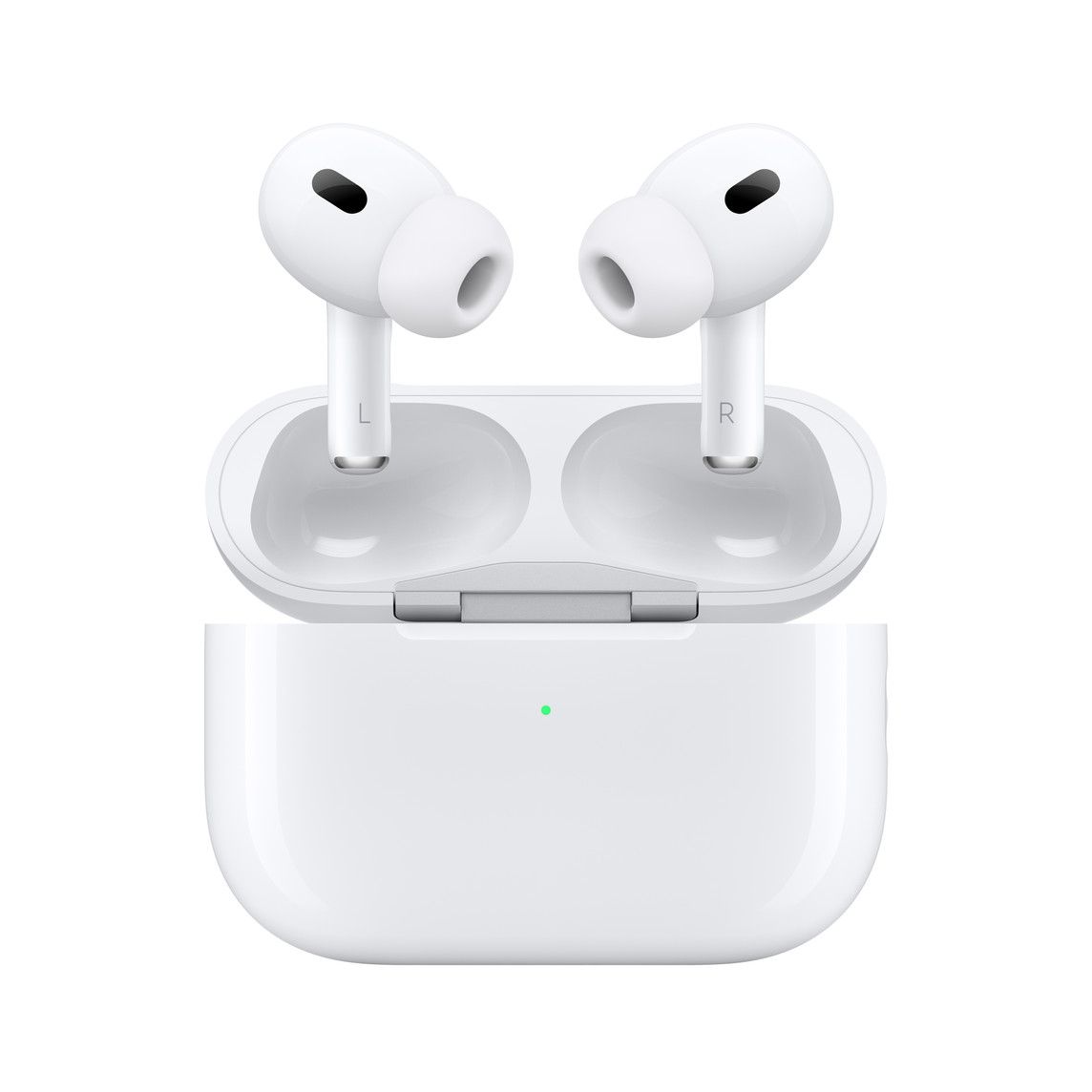
    Not much has changed in terms of appearances with the AirPods Pro 2. The earbuds themselves look almost identical, with an extra vent in each bud being the differentiating factor. The case has the same overall shape but has some new hardware including a speaker (that can play a beeping sound if you can’t find it around the house) and a small looping slot for lanyard straps. There’s a newer H2 chip inside that is more powerful at handling audio and active noise cancellation (ANC), but this obviously isn’t a visible change.

    AirPods Pro 2

    Just like the previous AirPods Pro, the silicon ear tips are removable, and Apple is including four sizes this year (instead of three like most other earbuds). This means the buds will fit a wider range of ear canal sizes.

    airpods pro 2

    The fit is comfortable for me using the small size silicon, but I find the earbuds protrude too much from my ears for my liking. Yes, this is nothing new, AirPods have always stuck out like this. But other earbuds, even ones with stems like Huawei’s FreeBuds Pro 2, Bose’s QuietComfort 2, or Nothing’s Ear 1, do not stick out from the side as much. The AirPods Pro’s stems curve at a wider, rounder radius. If I wear the AirPods Pro 2 and Samsung’s new Galaxy Buds 2 Pro at the same time and look at a mirror, the AirPods Pro is much more noticeable.

    I’m wearing the AirPods Pro 2 in my left ear and Galaxy Buds 2 Pro in the right.

    It doesn’t help that the AirPods Pro 2 come in white. I think even giving it a black paint job would make the earbuds look sleeker and more discreet. But I’m pretty sure that within Apple HQ, the AirPods Pro being so noticeable is a feature, not a bug. Just like slapping a giant logo on the back of their phones and laptops, Apple wants its products to be seen and identified, and I suppose many consumers like it too. I don’t.

    The stems did get a hardware upgrade — the capacitive touch panel now supports sliding motions, which is used to adjust the volume. Clicking on the sensors still brings a very satisfying haptic feedback that feels better than any other earbuds I’ve tested.

    The AirPods Pro 2 (left) and the Samsung Galaxy Buds 2 Pro.

    Battery and charging

    While the battery capacity inside the earbuds and the case remain the same, battery life is improved, with the AirPods Pro 2 getting six hours of playtime on a single charge. This is with ANC or transparency mode on at all times (you must use one of the two modes). If you use Spatial Audio, Apple claims the buds are good for five hours, but my unit was draining at a faster rate. I’d say four hours seems about right. The case adds another five full charges.


    Apple AirPods Pro 2: Setup, Audio Quality, Features

    • Setting up with Apple devices is as simple as opening the lid; with Android or Windows devices, it requires the press of a button
    • Excellent, balanced sound
    • Can respond to text messages, including WhatsApp, via voice dictation

    airpods pro setup

    Setting up the AirPods Pro 2 is a piece of cake with my iPhone 14 Pro Max. As soon as I took the AirPods out of the box and opened the lid, the pairing screen already popped up on my iPhone. I only had to tap a button to confirm these are my AirPods, and after that, the buds also worked seamlessly with my MacBook and iPad (because they all share the same Apple ID as my iPhone) without needing to manually pair again.

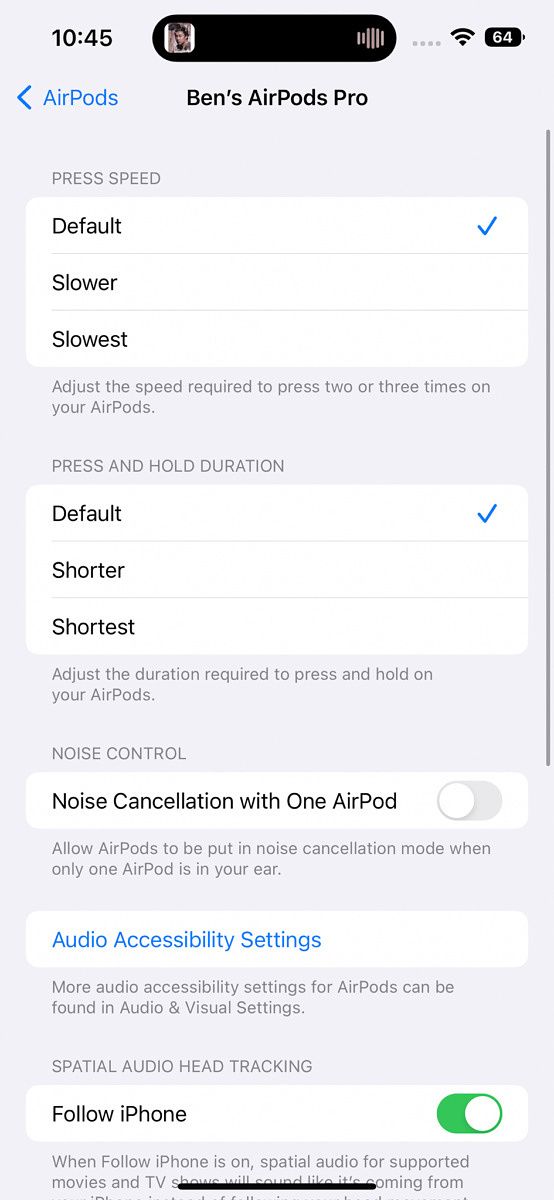
    Unlike some other earbuds, Apple doesn’t need you to install an additional app if you want to have more control over the AirPods. You can do so in the iPhone’s settings. These settings are more niche controls like accessibility features. For the most part, Apple doesn’t want you to fiddle with toggles and settings the way Samsung’s earbuds do.

    I, however, do not always use an iPhone. In the past few days, I’ve actually put my SIM card back into the Xiaomi 12S Ultra, and pairing is still easy. I just had to long-press the button on the case to tell the AirPods to go into pairing mode and connect via the Bluetooth menu of my Android phone. After that, I encountered no issues in terms of audio quality or audio playback. However, there are some iPhone-specific features I lose out on, like the ability to have incoming notifications read to me, and the ability to respond. More on this later.

    Apple doesn't want you to fiddle with toggles and settings the way other makers want you to

    Audio Quality

    While the AirPods Pro 2 still uses the same 11mm drivers as the previous generation AirPods Pro, Apple redesigned the amplifier and driver, plus the AirPods Pro 2 uses Apple’s new H2 chip (versus H1 in the original), and the audio output is much improved. They’re noticeably fuller and more dynamic. I do think the Galaxy Buds 2 Pro and Huawei FreeBuds Pro 2 have noticeably stronger bass for that extra kick in certain tracks, but I think the AirPods Pro 2 have a well-balanced sound that favors spoken word as much as instruments. There’s a bit more consistency among audio quality whether I’m listening to Outkast or a podcast compared to Huawei’s earbuds or Beats by Dre’s audio products (which, ironically, are also owned by Apple).

    The AirPods Pro (left) next to the Galaxy Buds 2 Pro (middle) and Huawei FreeBuds 2 Pro (right).

    Compared to rivals, the AirPods Pro 2 have more consistency in audio quality whether I'm listening to Outkast or a podcast

    Active Noise Cancellation

    During Apple’s September launch event, it claimed the new AirPods Pro’s active noise cancellation (ANC) is twice as good as the original pairs, and I think it lives up to that hype. ANC here is very good, able to almost completely provide silence if I’m in a room, and does an admirable job of blocking out the extremely loud Hong Kong streets.

    I think in terms of blocking out sound, the ANC here is neck and neck with the Huawei FreeBuds Pro 2, and a bit better than the Galaxy Buds 2 Pro. However, Bose’s new earbuds, which I have not tested, apparently have even better ANC that can mute human voices better than any earbuds before them.

    Unlike other earbuds which give you the option to use ANC, transparency mode, or neither, Apple only does either ANC or transparency. This is fine by me, as I find the middle option (off) to be a bit pointless. Switching between ANC and transparency mode is just a long press of the stem away. It works well. I can easily hold a conversation and hear the other end perfectly in transparency mode, even if I have music playing, provided the volume isn’t too high.

    Another little touch that Apple gets right: when you switch from ANC to transparency mode or vice versa, the transition is gradual, meaning the ambient noise will fade out or fade back in, instead of abruptly getting cut off or starting like with other wireless earbuds. Such smaller details help make the experience greater than just a sum of its parts.

    Phone calls, and responding to notifications

    Apple repositioned the microphones of the AirPods Pro 2 and they work fine for me. I almost never make phone calls these days, but a couple of test calls went smoothly, with the other party saying they could hear me. If I take the call outside in really noisy streets, the AirPods Pro 2 will apply ANC to my voice, which makes me sound a bit digitized, but it works. Again, Hong Kong is one of the noisiest places on earth, so if I can make a call outside here, I can surely make the call without issues in California or Berlin.

    One of the cool features of AirPods Pro is the ability to have Siri dictate incoming text messages, to which I can respond via voice, without touching anything. I have to say “reply,” followed by the words I want to say. And it worked very well in my testing with WhatsApp. The ability to have text messages spoken to me and respond on the earbud is not a new feature, though I just found out about it because I so very rarely use an iPhone. I actually own a pair of AirPods Max I use daily, but I usually pair it with my MacBook or Android phone.

    Spatial Audio

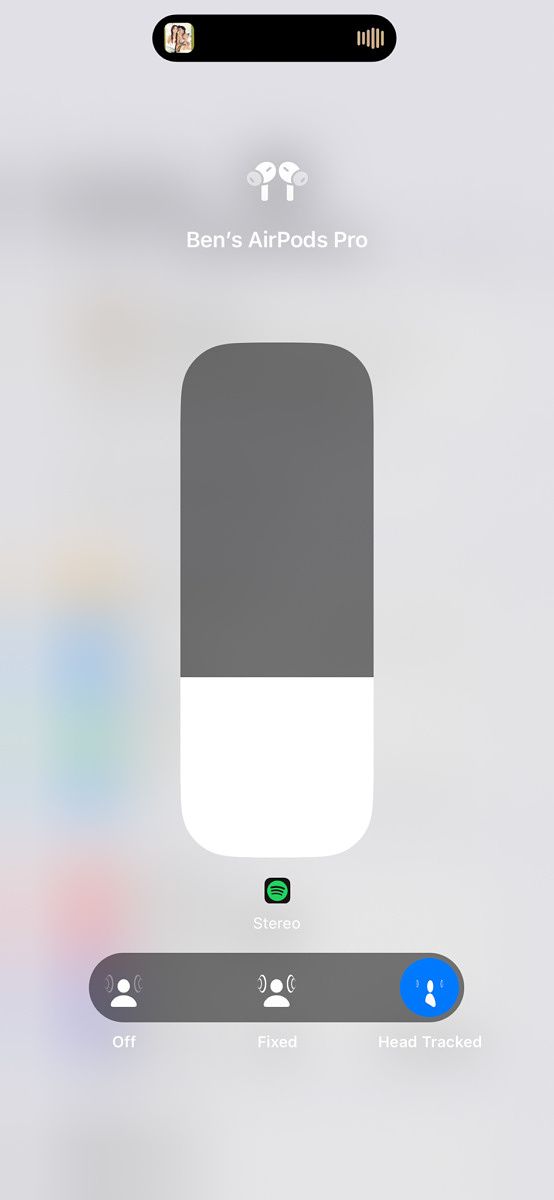
    Another exclusive feature for iPhone users is Spatial Audio, where the AirPods Pro will keep track of your head movements so if you turn your head, the audio will shift around to maintain audio direction as if you really are sitting in front of an audio source. This feature works as advertised, though I find it a bit gimmicky at times.


    Should you buy the Apple AirPods Pro 2?

    You should buy the AirPods Pro 2 if:

    • You want a pair of compact wireless buds with excellent sound and active noise cancellation
    • You are already immersed in Apple’s ecosystem and want earbuds that play nice with everything in it

    You should not buy the AirPods Pro 2 if:

    • You already own the original AirPods and find audio and ANC quality perfectly fine
    • You are on a tighter budget
    • You want earbuds that look a bit more discreet in your ears

    With the AirPods Pro 2, Apple didn’t try to make superficial changes. Instead, they chose to focus on improving things that matter, like battery life and audio quality. Even little things, like the ability for the AirPods Pro case to beep, are little touches that make them so easy to use.

    If you can splurge, the AirPods Pro 2 are awesome

    If you own an iPhone and want your first pair of wireless earbuds, the AirPods Pro 2 are easy to recommend, as long as the $249 price is acceptable. The bigger question is whether those who own standard AirPods or the first gen AirPods Pro should consider an upgrade.

    I’d say this really comes down to how happy you are with your existing AirPods or AirPods Pro. If you find your current set lacking in audio or ANC quality, the AirPods Pro 2 brings enough improvements to justify the upgrade.

    There’s a reason why the AirPods, and later AirPods Pro, became ubiquitous in every major city around the world. Sure, part of it is they’re the default earbuds for iPhone users, but also because they’re just really, really good.

      Apple AirPods Pro (2nd generation)
      The second generation AirPods Pro improve in all the areas that matter

    The post AirPods Pro 2 review: They’re everywhere for a reason appeared first on XDA.


    from XDA https://ift.tt/cMxbrm4
    via IFTTT

    Square brings support for Tap to Pay on iPhones to merchants in the U.S.

    In February this year, Apple announced that U.S. merchants would finally be able to accept payments using Tap to Pay on iPhones. At the time, the company said that the feature would become available sometime later this year. However, it did not share a definite release timeline. U.S.-based payments platform Square has now finally implemented the feature, allowing merchants to accept payments using Tap to Pay on iPhones.

    The feature will be available within the Square Point of Sale (POS) iOS app, and it will allow U.S. retailers to accept payments using just an iPhone. Tap to Pay on iPhones will not require any additional hardware, and Square will not charge retailers anything extra for using the feature. Tap to Pay on iPhones is available on iPhone XS and newer models, and it is compatible with most major networks, including American Express, Discover, Mastercard, and Visa.

    In a press release, Square clarifies that Tap to Pay on iPhones won’t store users’ credit card numbers on the device or on Apple’s servers. It will utilize built-in security features on iPhones to keep the merchant’s and customer’s data secure.

    Talking about the feature, Square’s Head of Financial Services, David Talach, said, “As commerce continues to rapidly evolve and contactless adoption in the U.S. continues to grow, Square is focused on ensuring sellers of all types and sizes have the technology needed to delight their customers and never miss a sale. Tap to Pay on iPhone offers a new level of accessibility for merchants to begin taking payments in minutes and processing transactions in seconds from anywhere in the store or on the go without the need for a separate payments device.”

    Square sellers and merchants can use Tap to Pay on iPhones in the U.S. starting today by downloading the Square POS app.

    The post Square brings support for Tap to Pay on iPhones to merchants in the U.S. appeared first on XDA.


    from XDA https://ift.tt/YmsDjtn
    via IFTTT